How to Create an Aesthetic Instagram 9-Grid Puzzle
Turn one photo into a seamless profile mosaic: size, slice, preview, reverse post, and the checks before you hit share.
A 9-grid puzzle is one photo occupying nine profile squares so the whole grid reads as a single picture. The work is mechanical: size the master, slice into numbered tiles, then upload in reverse so Instagram rebuilds the mosaic from the top-left.
Photoshop crop presets and a handwritten reverse map will get you there, but they are easy to scramble. Numbered exports and a profile preview remove the two failure modes that ruin a feed: wrong cut lines and wrong posting order.
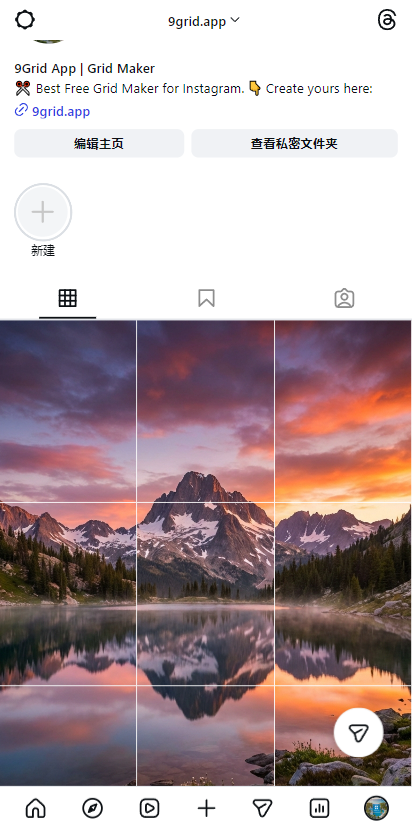
A seamless 3x3 grid I created using my own tool.
Why Bother With a Grid Puzzle?
It takes a bit of planning, but it's worth it. When someone clicks on your profile and sees one cohesive banner instead of random tiny squares, it reads as high quality and creativity. I've seen people linger on my profile longer just to take in the layout, and engagement followed.
It's especially powerful for:
- Launching a project: Want to drop a new clothing line or app? A 9-square takeover is unmissable.
- Travel panoramas: Stop cramming majestic mountains into tiny squares. Let them stretch across the whole screen.
How I Do It Now (The 5-Minute Method)
The five-minute method is: pick a source that survives nine cuts, slice on 3×3, then post in reverse.
1. Finding the right photo
I learned this the hard way: not every photo makes a good grid. You need a high-resolution image (I aim for at least 3000x3000px). More importantly, watch out for faces! You don't want a grid line slicing right through someone's eye. I usually stick to landscapes, abstract art, or wide-angle architectural shots.
2. Slicing it up
I just open 9grid in my browser, drop the photo in, and select the 3x3 layout. I can zoom and drag the image around to make sure the cuts happen exactly where I want them. Then I just hit Export.
3. The Upload Order (Don't mess this up!)
This is the most common mistake I see. Instagram fills your profile from Top-Left to Bottom-Right, but newer posts push older ones down.
If you upload your top-left image first, it will end up at the bottom-right of your profile. You have to upload them backwards. Start with the bottom-right slice and end with the top-left.
To stop myself from getting confused, I explicitly programmed 9grid to rename the exported files in reverse order (from 01 to 09). Now, I just upload them sequentially, and it works every time.
A Few Real-World Tips
- Don't leave captions blank: A single blue square looks weird in someone's feed. I always try to add a little quote or context to each slice so it still holds up as a standalone post.
- Maintenance: Once you have a 3x3 grid, you have to post in batches of 3 from then on, otherwise, you break the alignment. If I ever mess it up, I just archive the 9 posts rather than deleting them.
For profile systems besides a full mosaic, see 10 Instagram grid layouts brands still use. For the reverse map itself, use the Instagram grid posting order guide.
Want to try it out?
I built 9grid to be completely free and run entirely in your browser. Feel free to use it for your next profile makeover.
Open 9grid App →